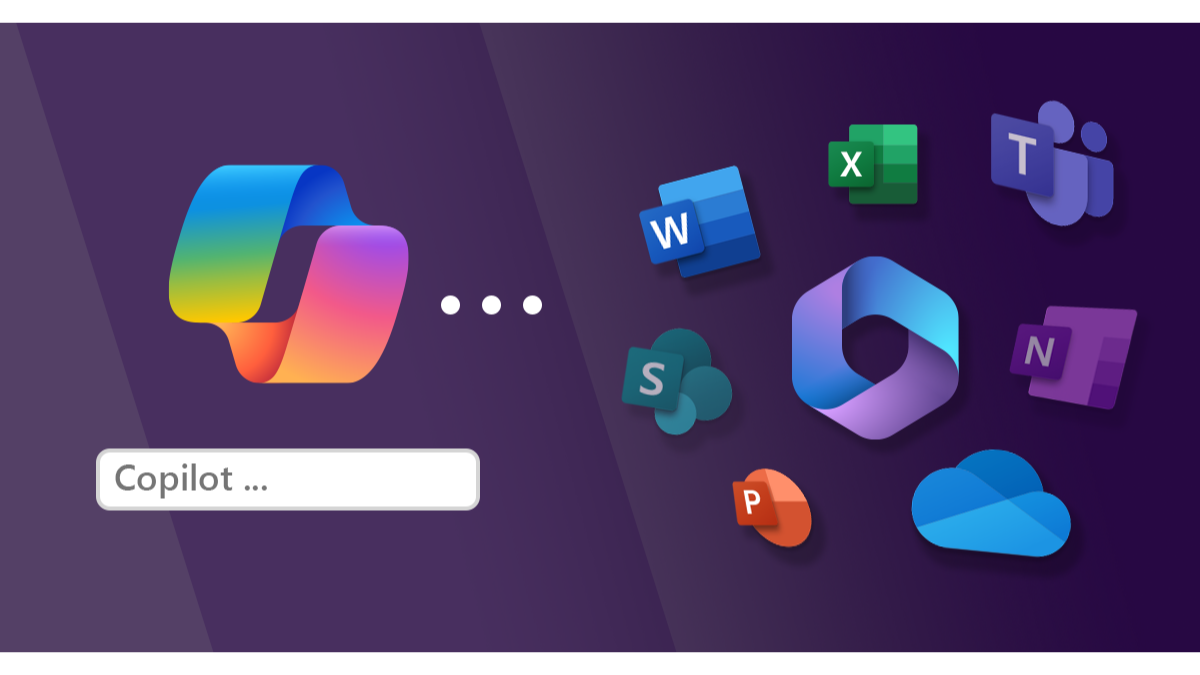
Microsoft Copilot has evolved far beyond a simple AI chatbot. What began as Microsoft’s conversational AI experience is increasingly becoming a layer of intelligence across Windows, Microsoft 365, productivity applications, business data, software development and AI agents.
In 2026, Microsoft is putting greater emphasis on making Copilot useful inside the applications people already use. Instead of opening an AI website, copying information into a prompt and manually transferring the answer back, users can increasingly work with Copilot directly alongside documents, spreadsheets, presentations, email, files and other Microsoft services.
Microsoft has also been expanding Copilot’s agent capabilities. These developments are important because the future of AI is increasingly moving from simply answering questions toward helping users complete multi-step tasks.
Recent Microsoft updates include the transition of the Microsoft 365 app to the Microsoft Copilot app, Python-assisted analysis in Excel, richer visual responses, additional AI model choices, improved enterprise search, Copilot Studio developments and broader support for agents.
For consumers, Copilot is becoming a more capable everyday assistant. For professionals, it is becoming a productivity tool. For businesses and developers, Microsoft’s larger goal is to create AI agents that can understand organizational information and perform useful workflows.
This article explains what Microsoft Copilot is, how it works, the latest features, its role in Windows and Microsoft 365, Copilot agents, security considerations, and what users should know before relying on it.
What Is Microsoft Copilot?
Microsoft Copilot is Microsoft’s family of AI-powered assistants and services.
The name covers several related experiences, including the personal Microsoft Copilot app, Microsoft 365 Copilot for work and school, Copilot Chat, GitHub Copilot, Copilot Studio and AI capabilities integrated into Microsoft’s broader software ecosystem.
The exact experience depends on the account, subscription, application and organization.
Microsoft’s current Copilot app combines conversational AI with access to Microsoft productivity experiences. Microsoft describes the app as a place where users can ask questions, create content, access Microsoft 365 applications, work with files and build or use agents.
For personal users, Copilot can assist with tasks such as:
- Answering questions
- Writing and rewriting
- Summarizing information
- Creating images
- Voice conversations
- Working with files
- Finding information
- Supporting everyday tasks
For Microsoft 365 users, Copilot can work alongside applications such as Word, Excel, PowerPoint and Outlook, although available features depend on the user’s plan and account.
For businesses, Copilot can use organizational information and connected data under Microsoft’s security and permission controls.
This makes Copilot less like a single application and more like an AI layer across Microsoft’s software ecosystem.
Why Microsoft Copilot Is Becoming More Important
The biggest change in AI is the transition from conversational assistance to task assistance.
A conventional chatbot might answer:
“How do I create a sales report?”
A more integrated AI assistant could potentially help analyze the relevant data, prepare a report, organize it in a document and support the user through the remaining steps.
Microsoft’s advantage is that many businesses already use Microsoft 365.
Organizations commonly work with:
- Word
- Excel
- PowerPoint
- Outlook
- Teams
- SharePoint
- OneDrive
- Microsoft Power Platform
When AI is integrated into these environments, it does not have to start with an empty conversation.
Depending on permissions and configuration, Copilot can work with the information and applications that are already part of a user’s workflow.
Microsoft is also expanding Copilot Studio and agent capabilities so organizations can create AI agents that work with enterprise knowledge, workflows, connected systems and other tools. Recent Copilot Studio updates include the GitHub Copilot harness, agent skills, memory, enterprise knowledge, connected agents, files and Model Context Protocol support.
That is a significant shift.
The Microsoft Copilot App Is Replacing the Microsoft 365 App Name
One of the notable changes users may encounter is the transition from the Microsoft 365 app to the Microsoft Copilot app.
Microsoft says the Microsoft 365 app is now called the Microsoft Copilot app across web, mobile and Windows. The updated name reflects the deeper integration of Copilot with Microsoft 365.
The app continues to provide access to familiar productivity applications while adding more AI functionality.
Microsoft describes the Copilot app as a starting point for finding, creating, sharing and collaborating.
This means users should not necessarily interpret the name change as Microsoft abandoning Word, Excel or PowerPoint.
Instead, Microsoft is positioning Copilot as the central interface through which users can access these productivity experiences.
For people already familiar with Microsoft 365, this can reduce the separation between traditional office software and AI assistance.
Microsoft Copilot on Windows
Windows is another important part of Microsoft’s Copilot strategy.
On supported Windows PCs, users can launch the Copilot application using dedicated shortcuts. Microsoft documentation says users can use the Copilot key, Windows + C and, where supported, the “Hey, Copilot” wake word.
Microsoft’s Windows Copilot experience can provide capabilities beyond ordinary chat.
The current Windows app can support features including:
- Copilot Vision
- File search
- Screenshot capture
- Viewing web content
- Windows Settings assistance
- Voice interaction
- AI conversations
- Image creation
Microsoft says the Windows app generally supports the same features available on Copilot.com while also providing some Windows-specific functionality.
This is important because it moves Copilot closer to the operating system.
Instead of treating AI as another website, Microsoft wants users to be able to invoke it while they are already working on the computer.
Copilot Vision
Copilot Vision is designed to give Copilot visual context.
Rather than relying only on a typed description, supported Windows experiences can allow Copilot to work with what the user is viewing.
This can be useful for situations such as:
- Understanding information on screen
- Getting assistance with an interface
- Discussing a document
- Exploring visual content
- Receiving contextual help
As with other AI features, users should understand what information is being shared before enabling visual assistance.
Microsoft Copilot and Excel
Excel is one of the clearest examples of Microsoft’s attempt to make AI useful for serious productivity work.
Microsoft’s August 25, 2026 Microsoft 365 Copilot release notes introduced the ability to use Python when editing with Copilot in Excel across Windows, Mac and the web.
Microsoft says Copilot can use Python for advanced analysis, automation and data transformation, with results produced directly in the workbook.
This is particularly interesting for users who need more than basic spreadsheet formulas.
Python can be useful for:
- Statistical analysis
- Simulations
- Data cleaning
- Advanced transformations
- Visualization
- Automation
- More complex analytical workflows
Previously, someone might have needed to export spreadsheet information into a separate programming environment.
Copilot-assisted Python can reduce that separation.
A user could describe the analytical goal and ask Copilot to help produce the required analysis.
However, AI-generated analysis still requires review.
A professional should check the assumptions, calculations, source data and interpretation before using the result for important decisions.
Rich Images Can Appear in Microsoft 365 Copilot Responses
Microsoft has also been making Copilot responses more visual.
According to Microsoft 365 Copilot release notes, Copilot can surface rich images inline from files and meetings in supported experiences. Microsoft says this provides additional visual context and reduces the need to switch between applications or documents.
This may sound like a relatively small feature, but it reflects an important trend.
AI responses are becoming multimodal.
Instead of receiving a block of text, users may increasingly receive:
- Text
- Images
- Tables
- Charts
- Files
- Links
- Other visual information
This can make complicated information easier to understand.
For example, if a user asks Copilot about information contained in meeting material, relevant images can provide context that a text-only answer may not capture.
Microsoft Copilot Can Work With Email Attachments
Another productivity-focused improvement is easier access to email attachments.
Microsoft’s release notes describe functionality that allows Microsoft 365 Copilot users to list file attachments from emails they have sent or received.
This addresses a common office problem.
Important documents are often buried inside email threads.
Finding an attachment manually can require searching through messages, opening conversations and checking individual files.
An AI assistant that can help locate attachments can reduce that friction.
For example, a user might ask Copilot to identify attachments from a particular sender or time period.
The usefulness of such a feature depends on permissions and account configuration, but the overall direction is clear: Copilot is increasingly being designed as an interface for finding information across productivity systems.
Different AI Models in Microsoft Copilot
Another important development is Microsoft’s willingness to give users access to more than one AI model.
Microsoft 365 Copilot release notes state that Anthropic’s Claude became available as a model option in Copilot Chat for supported users. Microsoft describes this as giving users more flexibility for tasks such as complex analysis, document understanding and structured content generation.
This represents a broader change in the AI industry.
Instead of one company relying exclusively on one model, productivity platforms can potentially give users different model options.
Different models may perform differently depending on the task.
A user might need:
- Fast responses
- Long-document analysis
- Coding assistance
- Complex reasoning
- Structured writing
- Data analysis
Model choice can therefore become part of the AI workflow.
However, availability depends on Microsoft’s product configuration, account type and rollout.
Copilot Is Becoming More Agentic
One of Microsoft’s most important AI directions is agentic computing.
A conventional AI assistant waits for a prompt and responds.
An AI agent is designed to work toward a goal by potentially using tools, accessing information and completing multiple steps.
For example, an agent could potentially:
- Understand a business request.
- Find relevant information.
- Analyze the information.
- Use a connected tool.
- Perform a workflow.
- Produce a result.
Microsoft is developing these capabilities through Copilot Studio and related products.
Recent Copilot Studio updates include agent skills, memory, enterprise knowledge, workflows, connected agents, files and MCP servers. Microsoft also announced the general availability of the GitHub Copilot harness for building more reasoning-heavy agents and workflows.
This is important for companies because many business processes involve multiple applications.
An AI agent can potentially become the interface between the user and those systems.
What Is Microsoft Copilot Studio?
Copilot Studio is Microsoft’s environment for creating and customizing AI agents.
It is aimed particularly at organizations that want to build AI experiences around their own business processes.
Instead of relying only on a general-purpose chatbot, a company can potentially create an agent for a specific purpose.
Examples could include:
- Customer service
- Internal IT support
- Human resources
- Sales assistance
- Employee onboarding
- Document workflows
- Business research
- Data analysis
The value of an enterprise agent depends heavily on the information it can access and the actions it is allowed to perform.
A poorly configured agent may provide incorrect information or have excessive permissions.
A carefully designed agent can potentially automate repetitive work while maintaining appropriate organizational controls.
Copilot and Microsoft 365 Workflows
Microsoft’s larger Copilot strategy is closely connected to Microsoft 365.
A typical office workflow might involve several applications.
For example:
Outlook → Word → Excel → PowerPoint → Teams
A person may receive information in an email, copy data into Excel, prepare a report in Word, create presentation slides and then discuss the work in Teams.
AI integration can potentially reduce the number of manual transitions.
Copilot can help with tasks such as:
- Drafting emails
- Summarizing messages
- Creating document drafts
- Analyzing spreadsheets
- Preparing presentations
- Summarizing meetings
- Finding files
- Organizing information
The precise capabilities depend on the user’s subscription and organization.
Microsoft says Copilot experiences adapt according to whether the user has a personal account or a work/school account, with enterprise data protection and organizational controls applying to supported work experiences.
Microsoft Copilot for Businesses
Businesses are likely to be among the biggest users of enterprise Copilot features.
The attraction is straightforward: companies already have large amounts of information stored in Microsoft systems.
That information can include:
- Documents
- Emails
- Meeting information
- Spreadsheets
- Presentations
- SharePoint content
- Business records
- Internal knowledge
AI can potentially make this information easier to search and work with.
Microsoft is also adding tools designed to improve the reliability of enterprise information.
For example, Microsoft introduced authoritative sites in SharePoint, allowing administrators to identify trusted sources that should receive priority in Copilot Search experiences.
This is important because AI systems are only as useful as the information they retrieve.
If a business has outdated, duplicated or conflicting information, AI may reproduce those problems.
Copilot and Software Development
Microsoft’s Copilot ecosystem also extends into software development through GitHub Copilot and developer-focused agent capabilities.
Developers can use AI for tasks such as:
- Writing code
- Explaining code
- Debugging
- Generating tests
- Refactoring
- Documentation
- Software planning
- Repository analysis
The newer agent-focused direction goes further by attempting to support multi-step software workflows.
The GitHub Copilot harness within Copilot Studio is part of Microsoft’s effort to bring more advanced coding and reasoning capabilities into agent workflows.
AI can accelerate development, but generated code still needs testing.
A developer should check:
- Security
- Dependencies
- Performance
- Logic
- Error handling
- Licensing considerations
- Production behavior
AI-generated code should not automatically be considered production-ready.
Copilot for Students and Education
Microsoft Copilot can also be useful in education.
Students may use AI to:
- Explain difficult concepts
- Summarize study material
- Brainstorm ideas
- Improve writing
- Practice questions
- Understand programming
- Organize notes
However, the educational value depends on how the technology is used.
Simply asking AI to produce an assignment may provide a short-term answer without improving understanding.
A better workflow can involve asking Copilot to explain a concept, provide examples, generate practice questions and identify weaknesses in the student’s understanding.
Students should also follow their school’s or university’s AI policies.
Microsoft Copilot Privacy and Security
As Copilot becomes more integrated with personal and business data, privacy and security become increasingly important.
The question is no longer simply:
“What can Copilot answer?”
It is also:
“What information can Copilot access?”
Before using connected AI features, users should understand:
- Which account is signed in
- Which files are accessible
- Which applications are connected
- What permissions are available
- Whether Copilot can perform actions
- What organizational policies apply
Microsoft says work and personal experiences remain separated in the updated Copilot app, while organizational security, privacy, compliance and administrative controls continue to apply to work or school accounts.
For organizations, permissions should follow the principle of least privilege.
Users should not give an AI system broader access than necessary.
AI Credits and Microsoft Copilot Limits
Copilot availability is not identical across all Microsoft subscriptions.
Microsoft’s documentation states that Microsoft 365 Personal, Family and Premium plans include AI features, but usage limits and AI credit allocations vary by plan. Microsoft also notes that limits can change as new AI models and features become available.
This is important when comparing Copilot experiences.
A feature shown in Microsoft’s documentation may not necessarily be available to every user.
Availability can depend on:
- Subscription
- Account type
- Country
- Application
- Platform
- Organization
- Feature rollout
- Usage limits
Users should therefore check their own Microsoft account and plan before assuming that a particular Copilot capability is available.
Common Mistakes Microsoft Copilot Users Should Avoid
1. Treating Copilot as an Always-Correct Search Engine
Copilot can generate incorrect information.
Important claims should be verified against authoritative sources.
2. Uploading Sensitive Information Without Checking Permissions
Before sharing confidential material, understand how the relevant Copilot experience handles the data.
3. Giving Agents Too Much Access
Agents should receive only the permissions required for their task.
4. Using AI-Generated Code Without Testing
Generated code can contain bugs or security vulnerabilities.
5. Assuming Every Copilot Feature Is Available
Microsoft offers multiple Copilot products and subscription levels.
Always check the relevant plan and platform.
6. Ignoring Human Review
AI can assist with important work, but people should review consequential outputs.
Pros and Cons of Microsoft Copilot
Potential Advantages
- Deep integration with Windows
- Microsoft 365 integration
- Word, Excel and PowerPoint assistance
- AI-powered spreadsheet analysis
- Python support in Excel workflows
- Voice interaction
- Image creation
- File and information search
- Enterprise knowledge integration
- AI agents
- Copilot Studio customization
- Multiple model options in supported experiences
- Developer-focused Copilot tools
Potential Limitations
- Features vary by subscription
- Availability can differ by country and account
- AI-generated information can be incorrect
- Enterprise deployment requires careful configuration
- Connected data introduces privacy considerations
- AI agents require permission controls
- Usage limits can apply to some AI features
- Generated code requires testing and review
These limitations are important because Copilot is becoming more powerful at the same time that its workflows are becoming more complicated.
Best Practices for Using Microsoft Copilot
Start With a Clear Goal
Tell Copilot exactly what you want to accomplish.
Instead of:
“Help with Excel.”
Try:
“Analyze this sales data and identify the three largest changes between the two periods.”
A clear request gives the AI a better-defined task.
Provide Relevant Context
Explain the purpose of the document, spreadsheet or project.
Context can make the resulting response more useful.
Check Important Information
Do not assume an AI-generated answer is automatically correct.
Verify important information against trusted sources.
Review Generated Documents
Before sending or publishing AI-assisted content, check:
- Facts
- Names
- Numbers
- Formatting
- Tone
- References
- Confidential information
Keep Permissions Limited
Only connect Copilot to services and information it actually needs.
Review Agent Actions
If an agent can perform actions rather than simply provide information, understand what it is allowed to do.
Use AI as a Productivity Tool
The strongest workflow is often collaborative.
Let AI handle repetitive or time-consuming tasks while humans retain responsibility for judgment, approval and final decisions.
Frequently Asked Questions
What is Microsoft Copilot?
Microsoft Copilot is Microsoft’s family of AI assistants and productivity tools. It is integrated into Windows, Microsoft 365 and other Microsoft services, with separate experiences for personal users, organizations and developers.
Is Microsoft Copilot the same as Microsoft 365 Copilot?
They are related but not identical experiences. Microsoft has been consolidating the user experience under the Copilot name, while Microsoft 365 Copilot provides AI capabilities connected to Microsoft 365 applications and organizational data.
What happened to the Microsoft 365 app?
Microsoft says the Microsoft 365 app has been renamed the Microsoft Copilot app across web, mobile and Windows. The application continues to provide access to Microsoft productivity applications and related services.
Can Copilot work with Excel?
Yes. Microsoft has expanded Copilot capabilities in Excel, including Python-assisted analysis for supported users. Microsoft says the feature can help with advanced analysis, automation and data transformation.
Can Microsoft Copilot create images?
Yes. The Copilot app supports image creation for supported users and experiences. Microsoft’s current Copilot app combines chat and image creation with Microsoft productivity functionality.
Does Microsoft Copilot work on Windows?
Yes. Microsoft provides a Copilot app for Windows. Supported Windows devices can offer shortcuts, voice activation, Copilot Vision, file search, screenshot functionality and other capabilities.
What is Copilot Studio?
Copilot Studio is Microsoft’s platform for creating and customizing AI agents. It is particularly relevant to organizations that want agents connected to business knowledge, workflows, applications and other systems.
Can Copilot use different AI models?
Some Microsoft Copilot experiences provide model-selection options. Microsoft 365 Copilot release notes, for example, document the availability of Anthropic’s Claude in supported Copilot Chat experiences.
Is Microsoft Copilot free?
Microsoft provides Copilot experiences for personal users, while additional capabilities are available through Microsoft 365 subscriptions and business plans. Features, limits and AI credits vary depending on the subscription and account.
Is Microsoft Copilot accurate?
Copilot can make mistakes and should not be treated as an infallible source of information. Important facts, calculations, code and business decisions should be reviewed.
What Is Next for Microsoft Copilot?
The direction of Microsoft Copilot is becoming increasingly clear.
Microsoft is moving toward an ecosystem where AI is integrated into the software people already use rather than being limited to a standalone chatbot.
Windows provides the operating-system layer.
Microsoft 365 provides productivity applications.
SharePoint and OneDrive provide organizational information.
Teams provides collaboration.
Excel provides structured data.
GitHub provides software development workflows.
Copilot Studio provides tools for building agents.
Together, these components create an environment in which AI can potentially understand context and assist with increasingly complex tasks.
The next stage will likely involve more capable agents, better connections between applications and stronger controls around enterprise information.
But the success of these systems will not depend only on AI model capability.
Reliability, permissions, privacy, security and user control will be equally important.
Final Thoughts
Microsoft Copilot is becoming much more than Microsoft’s answer to the generative AI chatbot market.
Its biggest development is the growing integration between AI and the software people already use.
On Windows, Copilot can provide an accessible AI interface with features such as Vision, file search and voice activation. Inside Microsoft 365, Copilot can help with documents, spreadsheets, presentations, email and business information. Excel is gaining more advanced analytical capabilities, including Python-assisted workflows, while enterprise users are gaining new tools for search, knowledge management and AI agents.
At the same time, Microsoft is investing heavily in Copilot Studio and agentic AI.
This could change the role of AI from something people ask questions to something that helps coordinate real work.
The transition will require careful implementation.
Users need to verify important information, review generated content and understand the permissions granted to AI systems. Businesses need stronger governance because an agent connected to organizational data can potentially have a much larger impact than a simple chatbot.
For everyday users, Copilot can already be useful for writing, research, productivity and creative tasks.
For professionals, its deeper Microsoft 365 integration may be particularly relevant.
For organizations, the more significant story may be the emergence of customizable AI agents capable of working with enterprise knowledge and business processes.
Microsoft Copilot’s evolution therefore reflects a broader change happening across the technology industry: AI is moving from a tool that generates answers toward a system that can increasingly help people understand information, create content and complete tasks.
The important question is no longer simply what an AI chatbot can say.
It is what the AI can safely do—and how effectively humans can remain in control of the work.